Describe it.
We'll build it.
A complete walkthrough of how your prompt becomes an editable vector.
Write a prompt.
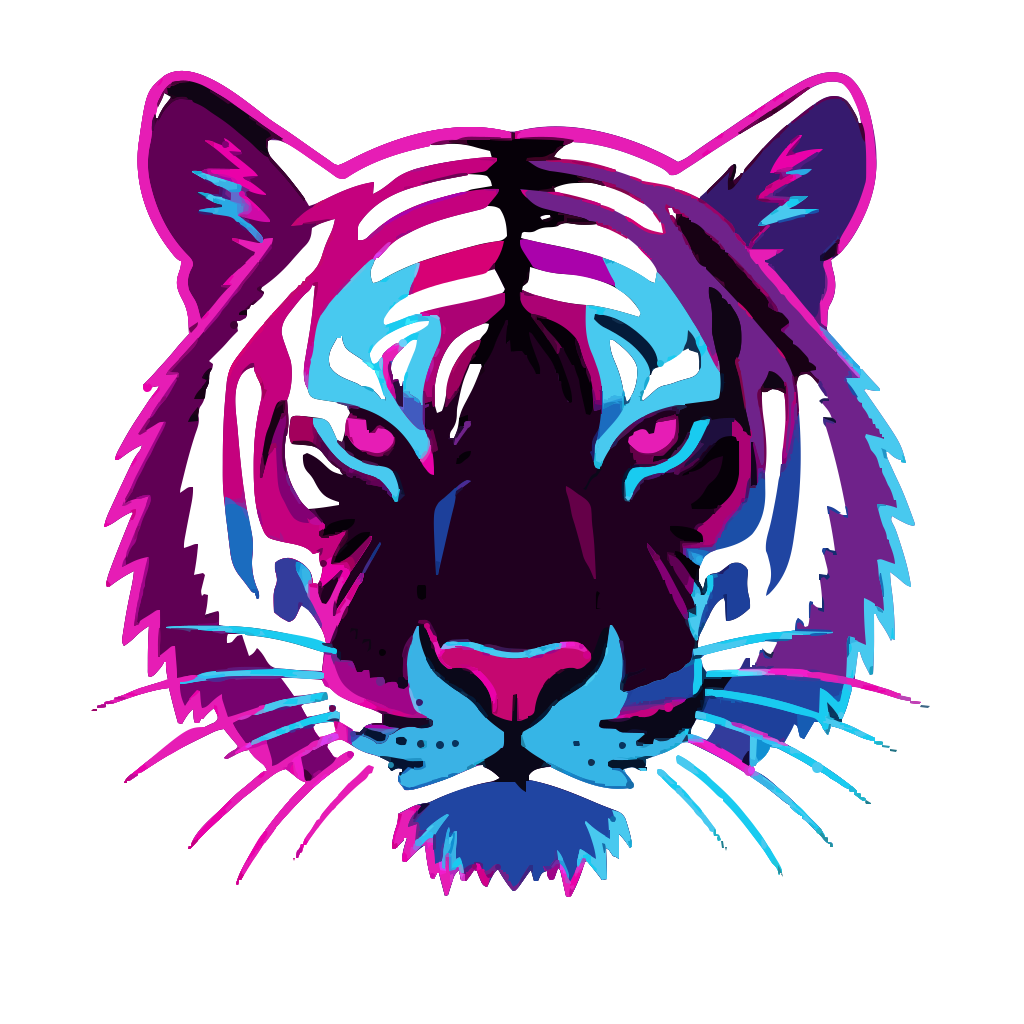
Type what you want to see. Something like "a neon tiger with electric blue stripes" or just "tiger illustration." Short prompts get automatically expanded with style and detail cues. Longer prompts give you more control over composition and color.
There's no special syntax to learn. You write in plain language and the system interprets it.
The same prompt bar works for logos, icons, illustrations, characters, game assets, and marketing graphics.
The pipeline builds your SVG.
After you hit Generate, the pipeline renders your concept as an image, traces it into vector paths, analyzes the color palette, merges related regions, simplifies curves, and optimizes the file. You see progress updates as each stage finishes.
The output is actual <path> elements with real
d attributes. Each color region becomes its own selectable layer.
Each generation costs one credit. You get ten free credits when you sign up, and you can buy more as you need them.
Edit it in the browser.
The generated vector opens directly in the built-in editor. Each layer is independent, so you can select, move, resize, rotate, hide, or lock any piece of the artwork.
Path editing mode lets you work with individual bezier anchors and control handles. You can adjust curves, reshape outlines, and split segments. It works like the pen tool in a desktop vector app.
You can also swap colors, undo and redo any change, and use keyboard shortcuts for common actions.
Export and use it.
Export as SVG to get the raw <path> elements with fills intact.
Export as PNG if you need a raster version at a specific resolution.
The SVG output is optimized during export. Redundant points are stripped and coordinates are rounded. A typical logo comes in under 20 KB. You can open it in Figma, drop it into a React component, or hand it to a teammate.
The file is standard-compliant SVG. It renders the same way in every browser and design tool, and you own the output.
Works across different use cases.
The same workflow applies whether you need a brand mark, an interface icon, an illustration, or a game sprite. Here are a few examples.

Logos
Brand marks, monograms, and wordmark concepts.














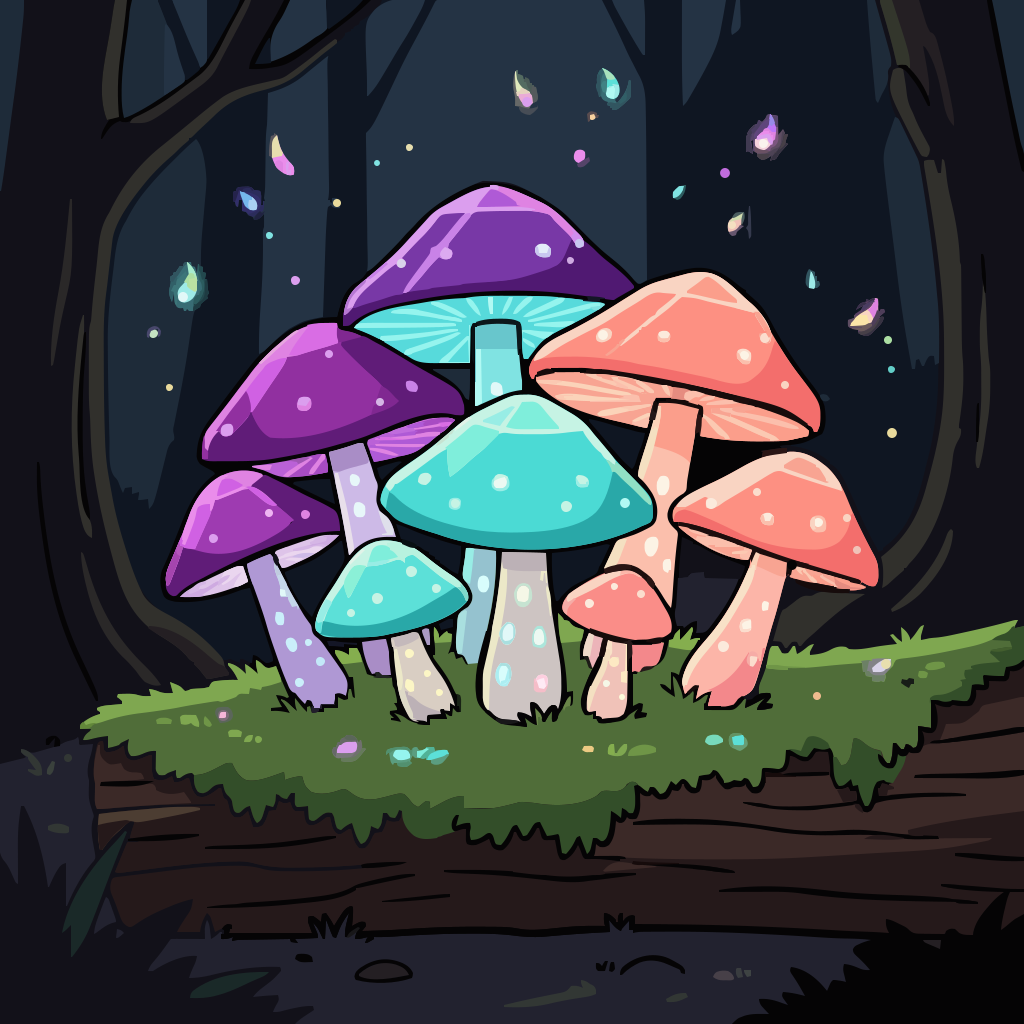
Icons
App icons, UI symbols, and consistent icon sets.
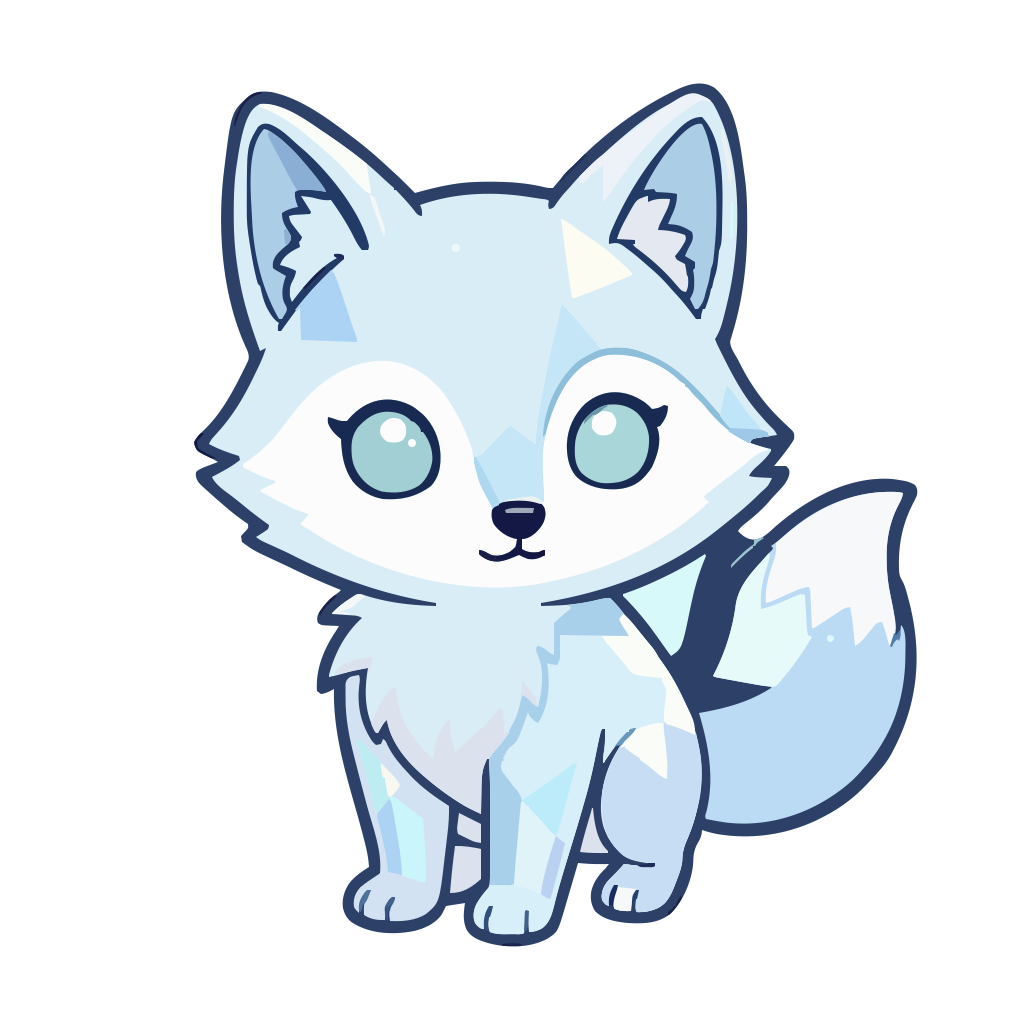
Illustrations
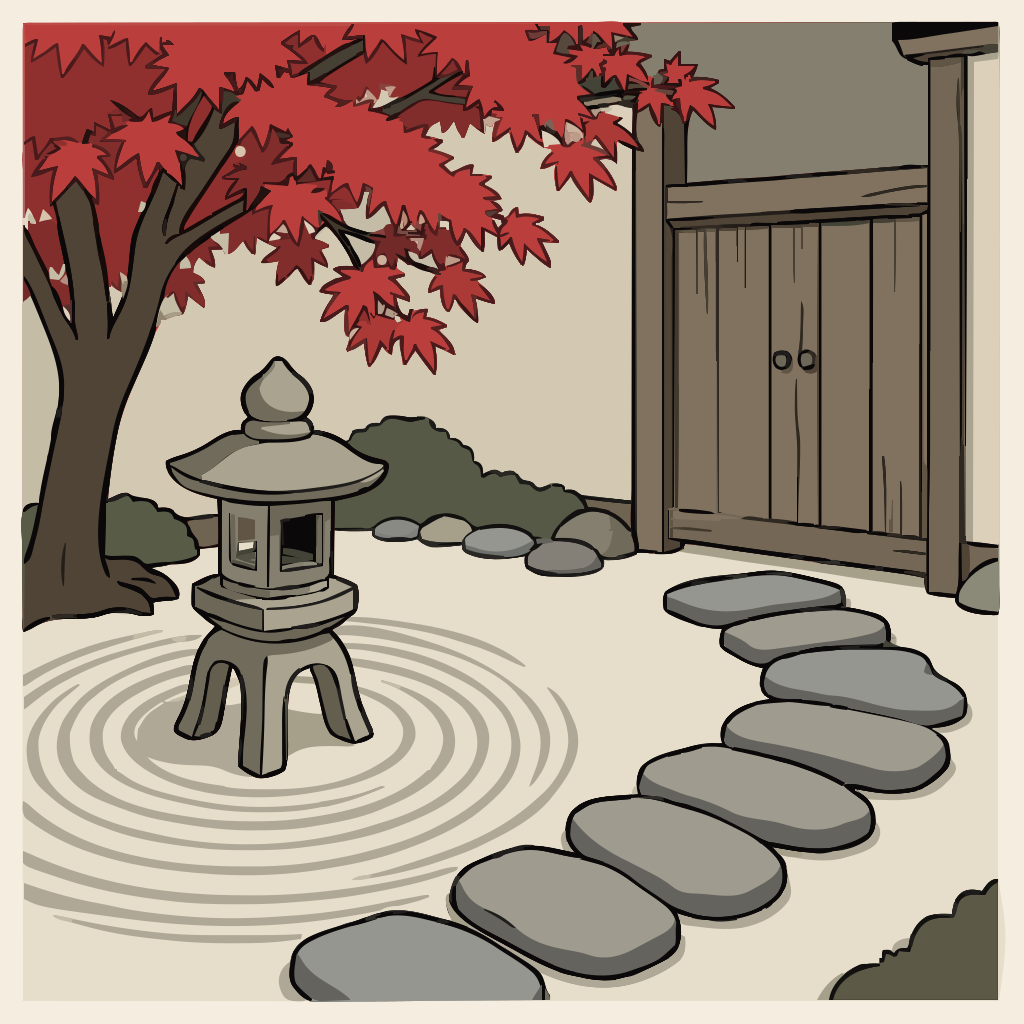
Spot art, hero graphics, and decorative artwork.
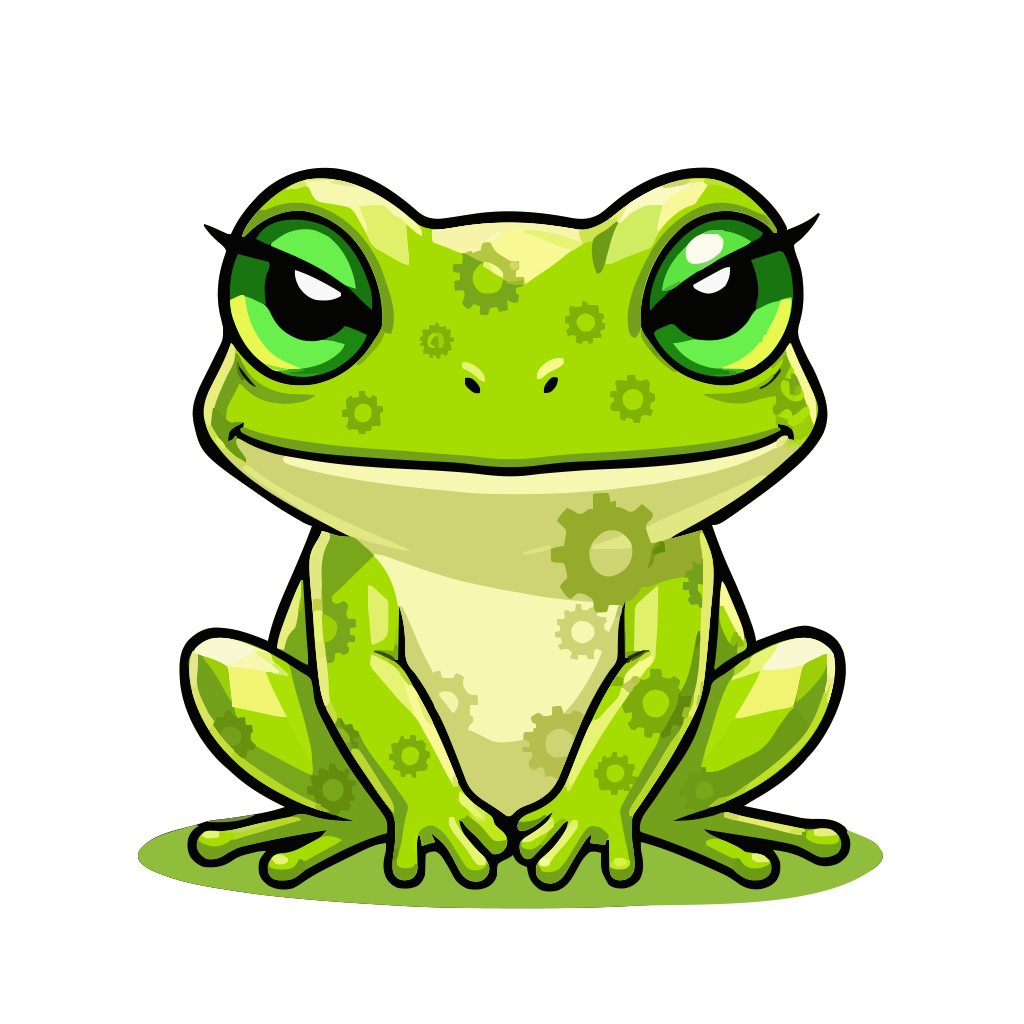
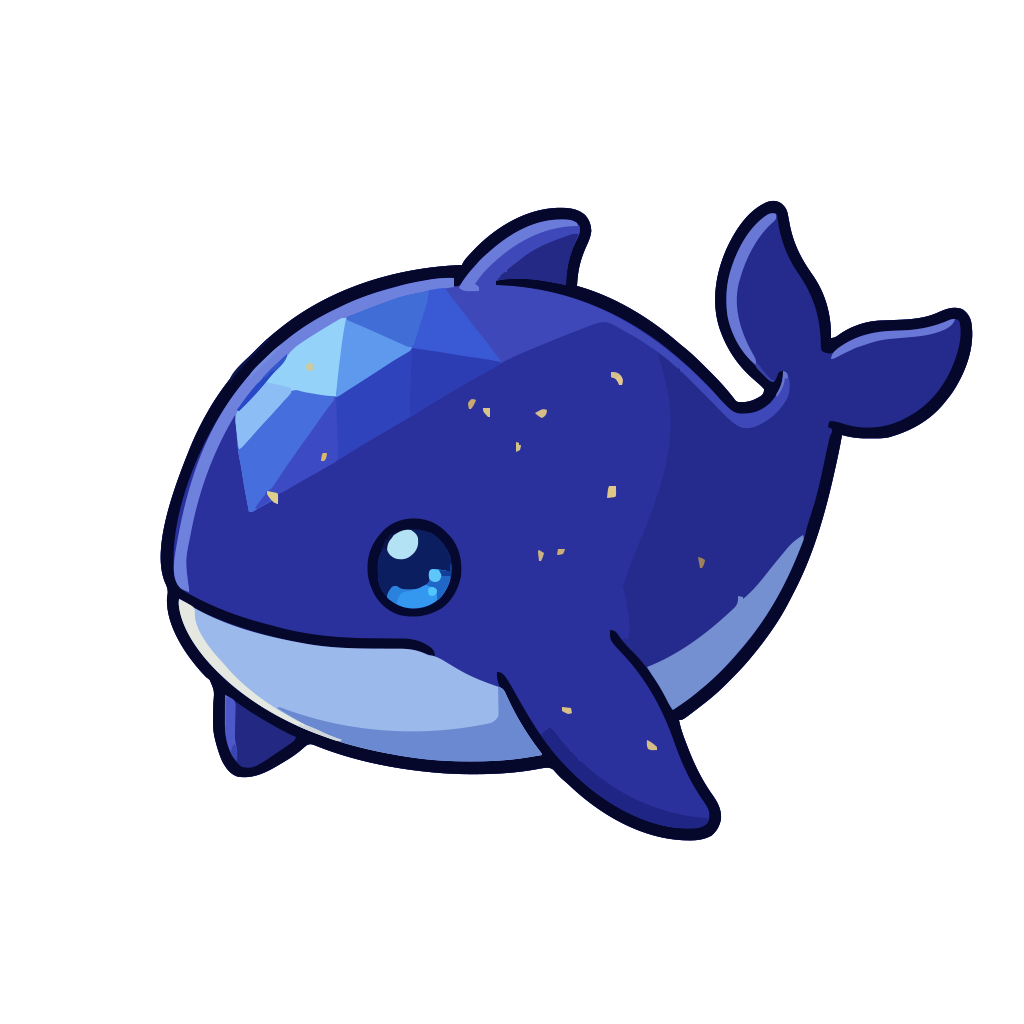
Characters
Mascots, avatars, and character designs.
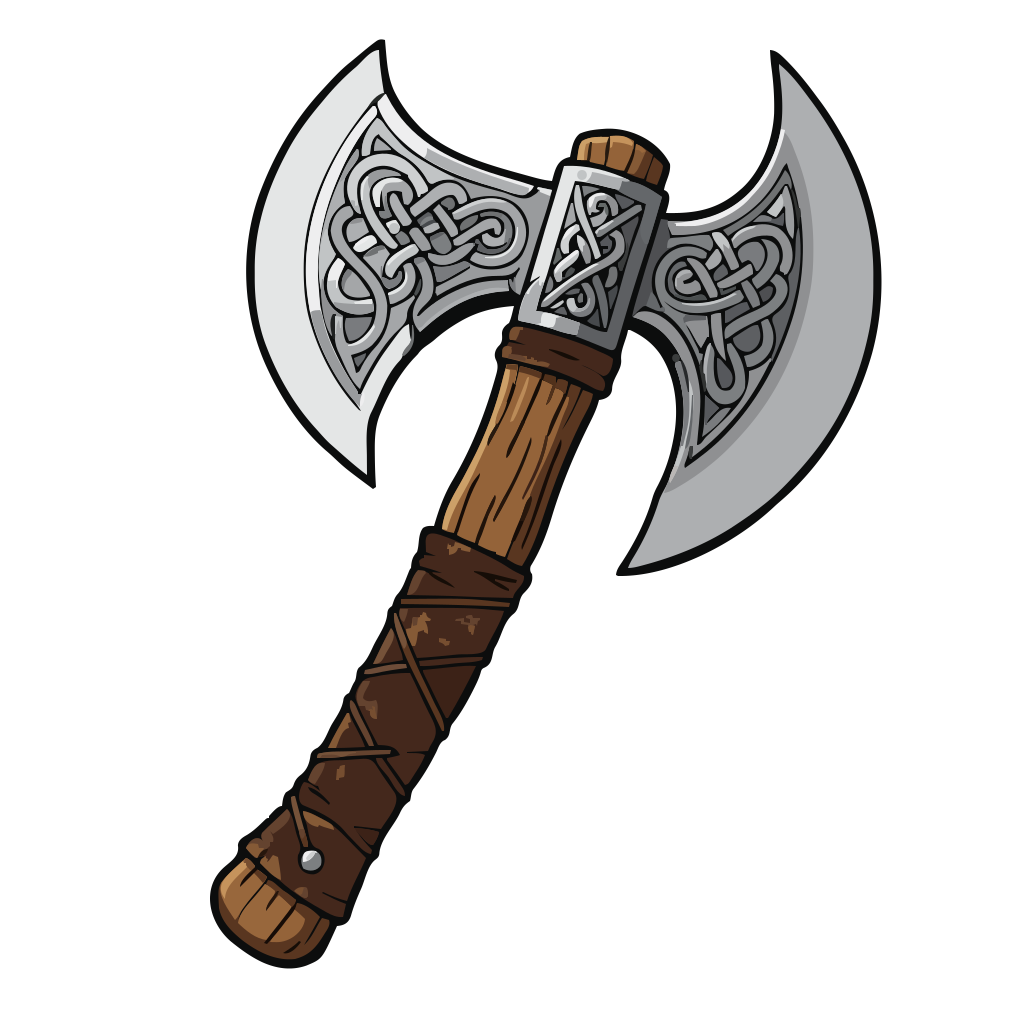
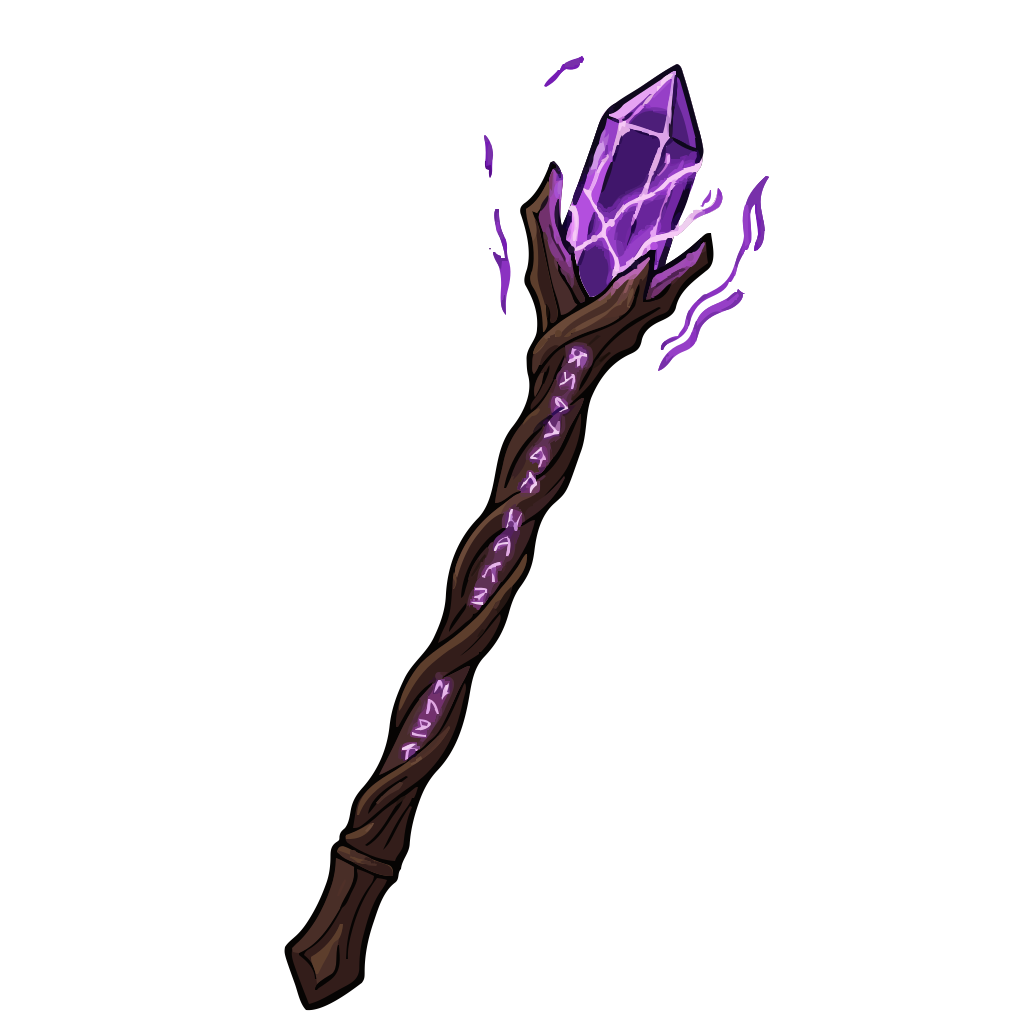
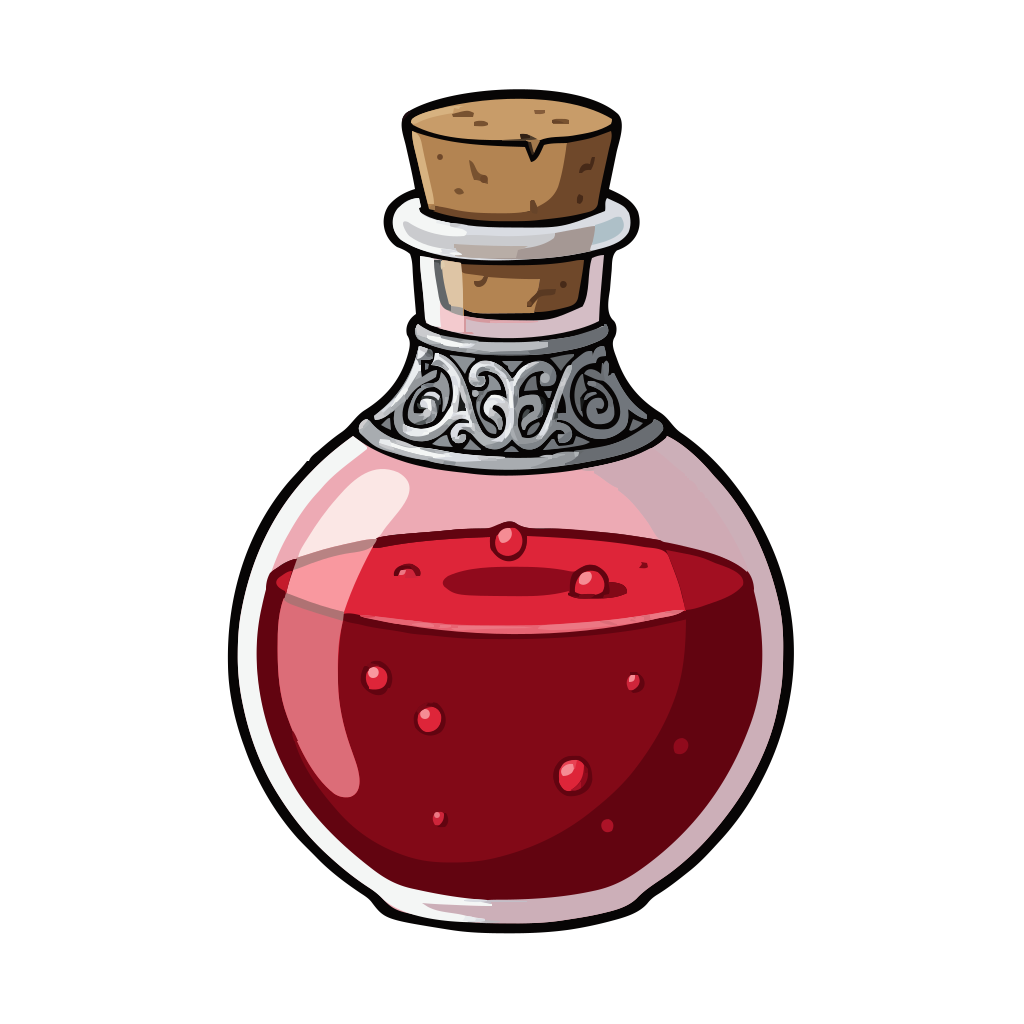
Game Assets
Weapons, creatures, and inventory items.

Marketing
Social media graphics, email headers, and event artwork.
A vector editor in the browser.
The editor is built for working with generated SVGs. Here's what it includes.